Hover the mouse over the different menu options. If the cursor changes to a hand ( ), then click to go to the subject.


Add or Edit a Quote
Go to: Quote / Sales Order > Quote Lookup and click on the New Quote button.
Tip: Watch the video: How to Use the Quote Module - Tutorial
Quotes are used to provide customers with price quotations. Once accepted, a quote can be easily converted into an Invoice, Sales Order, Purchase Order, or Job Card.
Hover the mouse over the different fields on the form. If the cursor changes to a hand () , click to get more information.
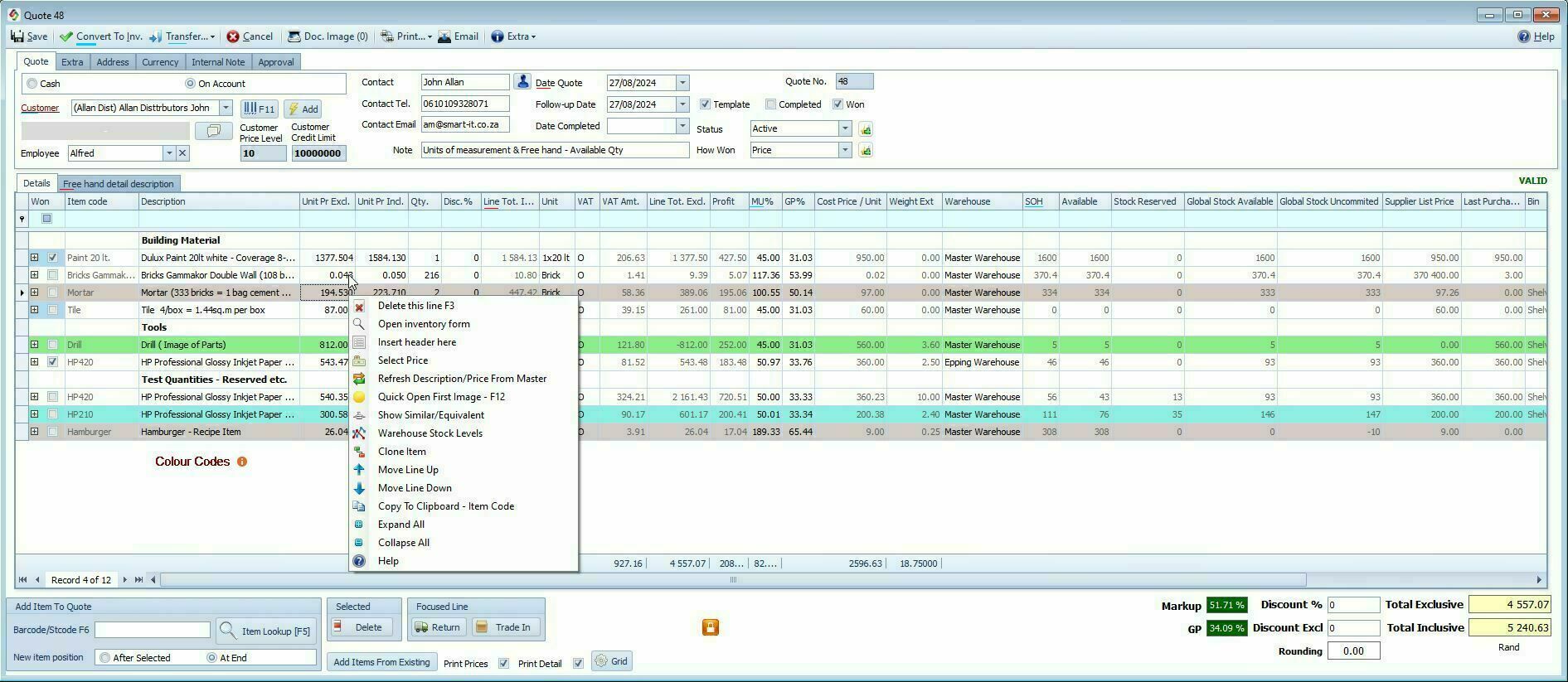
Key Information Displayed on the Quote
•Customer conversation history
•Customer’s current Price Level
•Customer Credit Limit
•Primary contact name, telephone, and email
Main Input Fields in the Quote |
|
Date Fields in the Quote:
|
Start Date, Follow-up Date, and Date Completed |
Quote Status |
|
Quote Status Use the Status fields for structured tracking. |
Quote Workflow Status Adds structured status tracking. Typical statusses include: •Active •Won •Lost •On Hold •Waiting for order. Note: You can add or modify statuses to match your business process.
|
How Won |
Record how the quote was won. Common options: •Loyalty - Won out of clients loyalty •Personal •Price •Service •Time considerations Note: You can customize these fields as needed. |
Type, How Requested |
Use the available checkboxes and fields to record the quote type and how it was requested. |
Document Type Checkboxes
|
Document Type Checkboxes •Pro Forma •Estimate •Template •Completed •Won |
Quote Menu Bar Options |
|
Convert To Invoice |
Directly converts the quote into a finalized invoice. |
Transfer to Invoice |
Transfers data to a new invoice for further editing. |
Transfer to Sales Order |
Transfer the quote to a sales order.
|
Transfer to Job Card |
Transfer the quote data to a job card. |
Transfer to Existing Job Card |
Adds items to an existing job card (you will be prompted for the job card number). |
Cancel |
Cancel a quote. Quote will be marked as Completed and stored under All Quotes. Can be restricted via Security Settings
|
Print Preview Print Picking List Print Quote Label Print Work Card |
If you want to print the quote and go on editing the quote. The quote will be printed, saved, and closed. Shows items to pick from inventory. Prints a label, for example, to attach to an item. When the label form opens, be sure to click the Submit button. Prints a form for the technician to use while working on the quote. Before printing, ensure a work card template is added. Set in Quote Options and select the Print tab. When the work card form opens, be sure to click the Submit button. |
Email a QuoteTo email a quote along with its attached images, follow these steps: 1. Navigate to Quote > Quote Options > Email Quote Tab and ensure the email option is enabled. 2. To include images in the quote, click on the Doc. Image button. • The number displayed on the Doc. Image button indicates the total number of attached images.
|
|
Quote Extra Menu• Import Quote (CSV, XLSX or SIE format) Tip: Quotes that were exported (Quote Lookup > Right-click > Export) can be imported. •Import Quote (SIE) •Create Purchase Order from the quote. •Reset All Rows Descriptions, Prices from Master (pulls latest data from inventory) •Set All Rows Discount To bulk change the discount for each item. Maximum line discount can be set in Inventory Groups. •Allow Above Maximum Discount •Allow Sell Below Cost (in the security setup, it can be set per group) •Allow Below Minimum Markup •SMS The SMS form will open. For information on how to use the SMS form, click here. To send a message via WhatsApp, you must have either the WhatsApp Desktop client installed or the WhatsApp Web client open. •This feature supports single messages only (bulk messaging is not supported). •Available in Job Card, Sales Order, Quote, and Customer Extra.
How to send a WhatsApp from a Quote 1. Open the Quote 2. Click on Extra on the Menu Bar 3. Click on WhatsApp
|
|
Buttons on the Quote Form |
|
Quote: Returned Goods |
How to handle Returned Goods on the Quote If a customer returns unwanted or incorrectly purchased goods, and wants a new quote — whether for account or cash sales. 1.Create a new quote 2.Add the returned item 3.Click the Return button – the item will automatically be entered as a negative value. ❖ The Return button can be disabled in Security Settings. This setting also affects the Job Card and Quote modules.
See also: Is Discount
|
Quote: Trade-In |
How to handle Trade-Ins on the Quote A trade-in is an item bought back from the customer, such as a Coke bottle, car, or similar item. Set the item as a Trade-In on the Main Stock Form.
Invoice Effects: 1. The system deducts the trade-in amount from the invoice total. 2. Your stock quantity increases based on the trade-in quantity.
Alternative Options: •For returns, see the Returns section. •If you don't want to increase your stock, refer to the Is Discount section.
Disabling Trade-In Button: •Open the Invoice Form. •Go to Security Settings and uncheck "Returns." -- this also disables trade-ins.
❖Extended Lookup and Stock Turnover forms provide a list of Trade-In items. |
Add Items From Existing |
Quickly copy items—such as descriptions, quantities, and VAT types—from a previous quote into the current one. Question: Can I merge 2 quotations into one? Answer: Yes. You can import items from an existing quote into the current quote. If the original quote is no longer needed, it must be deleted manually.
|
Quote: Print Prices |
Print Prices – Toggle to hide prices on the printed quote. |
Quote: Print Detail |
Print Detail – Toggle to print only the total (without itemized lines). |
Right-click Menu on Quote Lines |
|
Delete This Line |
Deletes the current item you have highlighted. |
Open the Inventory Form |
Open the item for editing. |
Insert a Header Here |
Insert Heading Line Add a heading or blank separator line
|
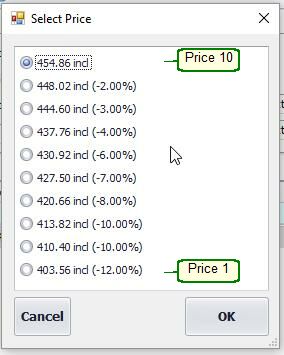
Select Price |
Select Price Choose from different price levels You can select price levels on quotes, invoices, sales orders and job cards.
Set the maximum price level that an employee can give in the employee form (maximum price level box) See also prices 1-10 as well as pricing options.
|
Refresh Description/Price From Master |
Refresh all details of this item, should changes have been made.
|
Quick Open First Image (F12 key) |
Quick Open First Image Opens the first image linked to the item, if an image is attached. You can also use the F12 function key to open the image.
|
Show Similar/Equivalent |
Similar Items When creating an invoice or quote, you can easily look up and select similar items.
|
Warehouse Stock Levels |
Warehouse Stock Levels By right-clicking on an item you can see the stock on hand for the different warehouses.
|
Clone Item |
Clone Item Creates a new item using the current item's data, assigning it a new item code and description. |
Important Columns on the Quote |
|
MU% Column: |
If you adjust the Markup Percentage for an item in the quote, the difference will be reflected in the quote's Discount Percentage column.
|
Line Total Inclusive for Discount: |
Enter a value in this column to automatically calculate and display the discount percentage given to the customer in the discount column. This column is available in Quote, Sales Order and Job Card.
|
Cost Price / Unit |
Cost Price Override If the Allow Change Cost Price is enabled in the Quote Options, this option lets you modify the cost price directly on a quote. This lets you immediately see how changes affect the markup and gross profit (GP).
Important: The cost price entered here is used solely for calculation purposes — it does not affect any journal entries. Purpose of the Function:When a customer places a large order, you may need to confirm special bulk pricing with your supplier. By entering the revised cost price on the quote, you can accurately reflect updated markups and ensure that the pricing is aligned with the adjusted cost.
|
Won
|
Partial Quote Acceptance Allows customers to accept only some items in a quote. Select the items the client wants in the Won column. System converts only those items to an invoice. |
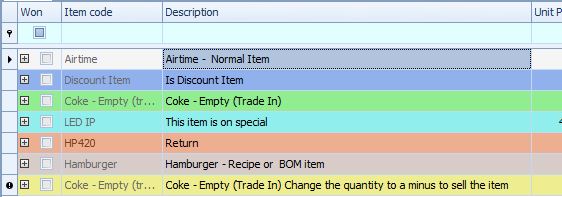
Visual Indicators
Rows are colour-coded by item type (Trade In, Special Active, Discount item, BOM, Return, etc.). See image below.
Notes:
•You can print a quote in the shop so the customer can take it to the cash till and convert it to an invoice on the spot. Use the Invoice From button to convert the quote to an invoice.
•To hide Markup and Profit columns: Go to Invoice > Invoice Options > General Tab.
•To allow quoting for inactive customers: Enable the setting in Quote Options.