Reconciliation - Status Method |
Top Previous Next |



Supplier (Creditor) Status Reconciliation
How to Reconcile.
Go to: Supplier > Lookup & Reconciliation
1.Right-click the supplier. Select Reconcile this Supplier.
The reconciliation form will display:
•Goods Received Notes (GRNs) – Supplier invoices
•Return To Suppliers (RTS)
•Payments
Reconciliation Steps
1. Reconcile the account – match invoices (GRNs) and payments
2. Print Remittance Advice Note – confirm what will be paid
3. Process the reconciliation – finalizes entries and moves them to “Completed Reconciliation”
4. Complete the payment - go to Completed Reconciliation to issue the supplier payment
Hover the mouse over the different fields on the form. If the cursor changes to a hand ( ) , click to get more information.
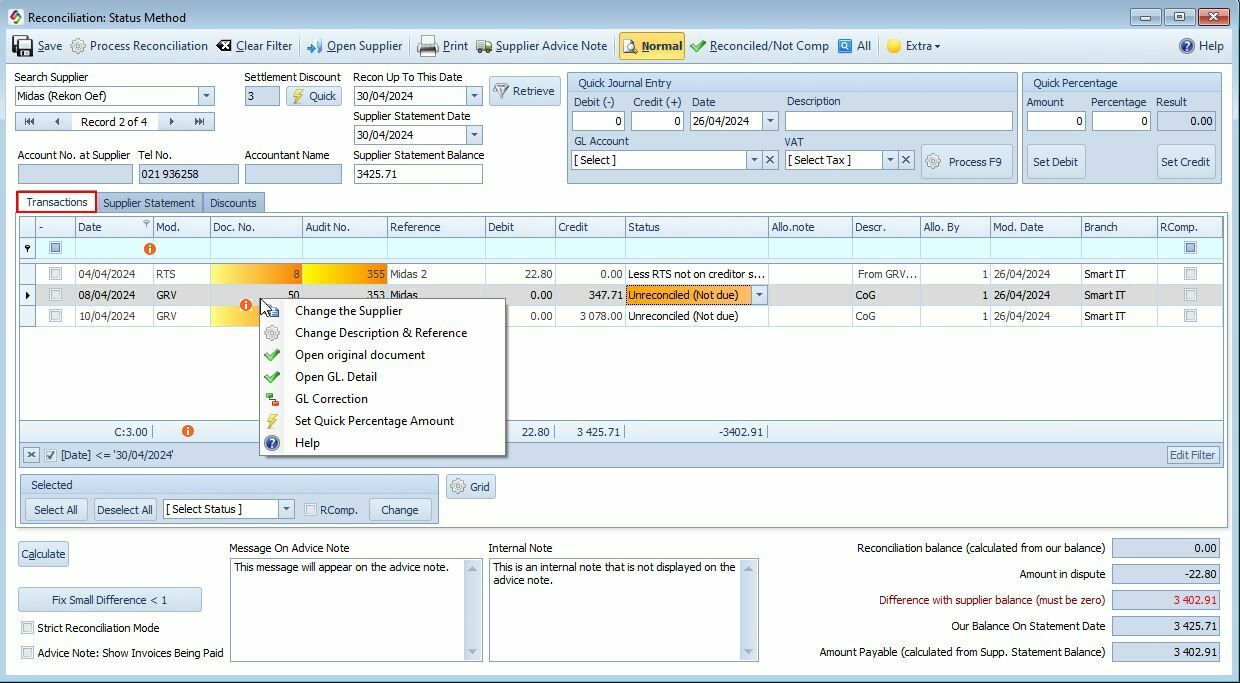
Menu Bar Options |
|
Save |
Save your progress without finalizing. |
Process Reconciliation |
Click Process Reconciliation Finalizes the reconciliation process: •Mark entries as completed •Transfers the data to the Completed Reconciliation table •Should only be clicked when everything is reconciled and the difference with the supplier balance is zero
|
Print the reconciliation data. |
|
Clear Filter |
Removes any applied filters. |
Open Supplier |
Open the main Supplier Form.
|
Supplier Advice Note (Remittance Advice) |
Print or email the remittance advice to the supplier.
|
Views |
Views •Show Normal – Shows unreconciled entries (default) •Reconciled / Not Completed – Shows reconciled but not finalized items •All – Displays all entries, including completed
|
Important Settings
|
|||||||||||||||||
Settlement Discount & Amount |
Settlement Discount & Amount •The Settlement Discount % is pulled from the Supplier Form. •The Settlement Discount Amount is calculated based on the Amount Payable. •You can manually adjust the discount amount if needed.
|
||||||||||||||||
Make Settlement Discount Entry |
Make Settlement Discount Entry When you post the settlement discount: •A reconciliation entry is created in the Supplier Reconciliation form •Marked as "Less: Discount not on statement" Journal Entries Example:
Note: You can configure the discount account in: Account Options > Account Defaults
|
||||||||||||||||
Supplier Statement Balance |
Supplier Statement Balance Enter the balance as per the supplier’s statement. Used to identify discrepancies between your calculated balance and the supplier's statement balance.
|
||||||||||||||||
Reconcile Up To This Date |
Reconcile Up To This Date Enter the cut-off date for the reconciliation. Usually, this matches the Supplier Statement Date, unless your GRN date differs from the supplier's document date.
|
||||||||||||||||
Supplier Statement Date |
This is the date on the supplier's actual statement.
|
||||||||||||||||
Retrieve |
Click Retrieve to display only entries up to the specified statement date.
|
||||||||||||||||
Date |
Purchase Date |
Mod. |
Source Module. (e'g.,GRV= Goods Received, SJ = Supplier Journal, SPAY = Supplier Payment, RTS = Return to Supplier)
|
Doc. No. |
Internal document number. Click to retrieve the original document.
|
Audit No. |
Click to view the journal entries.
|
Reference |
Suppliers document reference
|
Debit |
Debits is Payments and Credits received.
|
Credit |
Amounts owed to the supplier
|
Status (Reconciliation) |
For each entry, choose the relevant Reconciliation Status from the dropdown box. (See options below)
|
Allocation Note |
Note about the allocation.
|
Allocation By |
User who performed allocation
|
Modify Date |
Last modification date
|
RComp |
Completed Reconciliations Will be checked automatically after you have processed the reconciliation. Strict Reconciliation mode will prevent you from changing the RComp. status. You almost never need to change the status and indicates serious problems.
|
Reconciliation Status Explained |
|
Reconciled |
Select if the amount corresponds to the amount on the supplier statement
|
Less payments not credited on statement |
Select if your payment does not show on the supplier statement
|
Pay the RTS (Return to Supplier) |
Select if you do not want to deduct the RTS amount from the amount payable, thus paying the supplier
|
Do Not Pay the RTS |
If you want to subtract the RTS amount, thus not paying the Supplier.
|
Less outstanding invoice |
If you do not want to pay invoice
|
Less goods not received |
If you do not want to pay invoice
|
Minus invoices not due know |
If you do not want to pay invoice
|
If you do not want to pay invoice |
If the entries are not applicable for this reconciliation.
|
|
|
Strict Reconciliation Mode |
✅ Strict Reconciliation Mode (Recommended) •Ensures the reconciliation difference must be zero •Prevents incorrect processing •Blocks remittance printing if not balanced
❖Locking the Setting To avoid accidental deactivation, use Security Setup to restrict access to this checkbox.
|
Fix Small Difference < 1 |
Fix Small Difference < 1 Automatically posts a journal entry for small differences (e.g., less than R1).
|
|
|
Reconciliation Balance (Calculated from our balance).
|
Reconciliation Balance (Our Balance) The Reconciliation Balance represents what your system believes is payable to the supplier, based on all transactions up to the reconciliation date.
How It's CalculatedThere are two ways to understand the formula:
Method 1: Reconciliation Balance = All credit amounts for the period (Unreconciled or Not Due is ignored) ➕ Less Outstanding Invoices ➕ Less Goods Not Received (GRNs not matched) ➕ Minus Invoices Not Due Now ➖ Do Not Pay the RTS
Method 2 (Simplified View): Recon Balance = Our Balance ➖ Unreconciled Credits ➕ Unreconciled Debits (or Do Not Pay RTS) ➕ All less or minus credit amounts
Note: The goal of the reconciliation is for your calculated Reconciliation Balance to match the Supplier’s Statement Balance. Any difference should be investigated before processing.
|
Amount in Dispute |
Amount in Dispute = Less Outstanding Invoices + Less Goods Not Received + Minus Invoices Not Due - Do Not Pay the RTS.
|
Difference with supplier balance |
Difference with supplier balance = Supplier Statement Balance - Recon Balance (calculated from our balance) + Amount in Dispute. If everything is correct the difference must be 0. Please Note: The difference with supplier balance must be zero. If not, find and correct the fault. If the difference is smaller than R1 then you can select the Fix Small Difference < 1 button to automatically do a journal entry for the difference.
|
Our Balance on Statement Date |
Total credits minus total debits (completed and non-completed values). If you want to compare the value on the grid with Our Balance on Statement Date, click the All button on the menu.
|
Amount Payable |
Amount Payable is the amount you must pay the supplier, also the amount used to calculate the Discount Amount. = Supplier Balance - Less Payments Not Credited On Statement or Do Not Pay The RTS
|

Notes:
There should be no unreconciled entries in the reconciliation form. Change the statement date to exclude items that are not applicable for this period.
Access Control & Security Settings
To restrict access to specific fields or actions within the reconciliation process, use the Security Setup feature.
For example:
•Prevent users from changing the reconciliation status
•Lock down the Strict Reconciliation Mode setting