Purchase Order Lookup |
Top Previous Next |
Hover the mouse over the different menu options. If the cursor changes to a hand ( ), then click to go to the subject.



Purchase Order Lookup
Go to: Stock Items > PO Lookup
Overview
The Purchase Order Lookup allows you to find, monitor, and manage purchase orders. You can view purchase order statuses, open or edit orders, convert ordered purchases into Goods Received Notes (GRNs), and perform bulk actions on selected purchase orders.
Purchase Order Statuses
Use the status filters in the Purchase Order Lookup menu bar to view purchase orders according to their current status.

Pending (Not Ordered): The purchase order has been created but has not yet been placed with the supplier.
Ordered (Not Received): The purchase order has been placed with the supplier, but the goods have not yet been received.
Partially Arrived: Some of the ordered goods have been received, but the order is not yet complete.
Arrived: The order has been fully received and completed.
Cancelled: Displays cancelled purchase orders. You can also view cancelled item details in Purchase Order Detail Lookup.
RFQ (Request for Quotation): Displays purchase orders created as requests for quotations from suppliers.
Important — Partial deliveries: To allow purchase orders to be partially received, ensure that the Back-order checkbox is selected on the supplier's Main Form.
Opening or Editing a Purchase Order
You can open a purchase order directly from the Purchase Order Lookup.
View or edit an order: Right-click the relevant row and select Show Edit Order.
Use Show Edit Order when you need to review the purchase order details or make changes to the order.
Convert a Purchase Order to a Goods Received Note (GRN)
A Purchase Order can be converted to a GRN only after it has been ordered.
A GRN records the goods received from the supplier against a purchase order.
Convert a Single Purchase Order
1. Go to Stock Items > PO Lookup.
2 Select the Ordered (Not Received) status.
3. Locate the required purchase order.
4. Use either of the following methods:
•Double-click the Date in the second column.
•Right-click the order and select GRN this Order.
Smart-IT opens the GRN process for the selected purchase order.
Note: Purchase orders that have not yet been ordered cannot be transferred to a GRN using this process.
Convert Multiple Purchase Orders to a GRN
You can select multiple ordered purchase orders and transfer them using the bulk-action options.
1. Open Stock Items > PO Lookup.
2 Select Ordered (Not Received).
3. Select the checkboxes beside the purchase orders you want to process.
4. Go to With Selected.
5. Click GRN to transfer the selected purchase orders to the Goods Received Note process.
View Purchase Order Items
To view the individual stock items linked to purchase orders, open Purchase Order Detail Lookup.
Go to: Stock > PO Lookup > Purchase Order Detail Lookup
This lookup provides a detailed breakdown of the items associated with purchase orders, including items from cancelled orders where applicable.
Hover the mouse over the different fields on the form. If the cursor changes to a hand () , click to get more information.
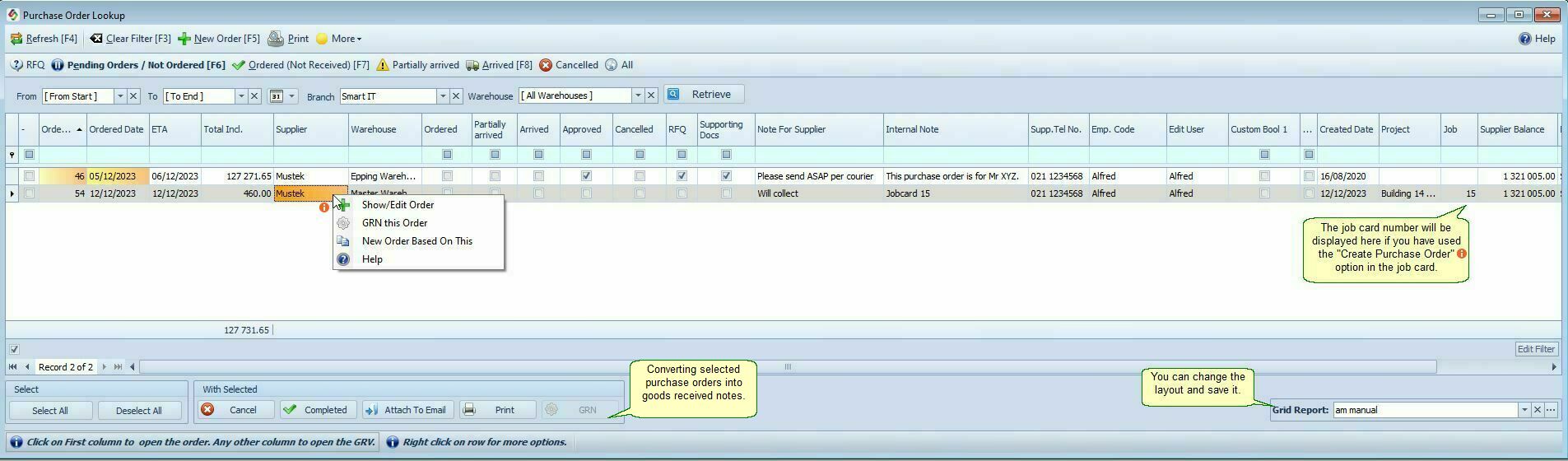
Bulk Actions Available in the Purchase Order Lookup.Select Purchase Orders for Bulk Actions: Use the checkbox |
|
Available Bulk Actions |
|
Cancel |
Cancels the selected purchase orders. |
Completed |
Marks the selected Purchase Orders as completed. |
Attach To Email |
Uses Outlook to prepare an email with the selected purchase orders attached. |
Prints the selected purchase orders |
|
Goods Received Note (GRN) |
Transfers the selected ordered purchase orders to the GRN process. |

Columns in the Purchase Order Lookup |
|
Available Supplier Credit |
Credit Limit - Balance |